
AI Clothes Changer
Add a person photo and a separate outfit reference to the AI clothes changer. Generate an outfit swap, compare it with the original, and download only if the details look right.
Create your outfit swap
Selecting photos does not upload them.
How your photos are handled
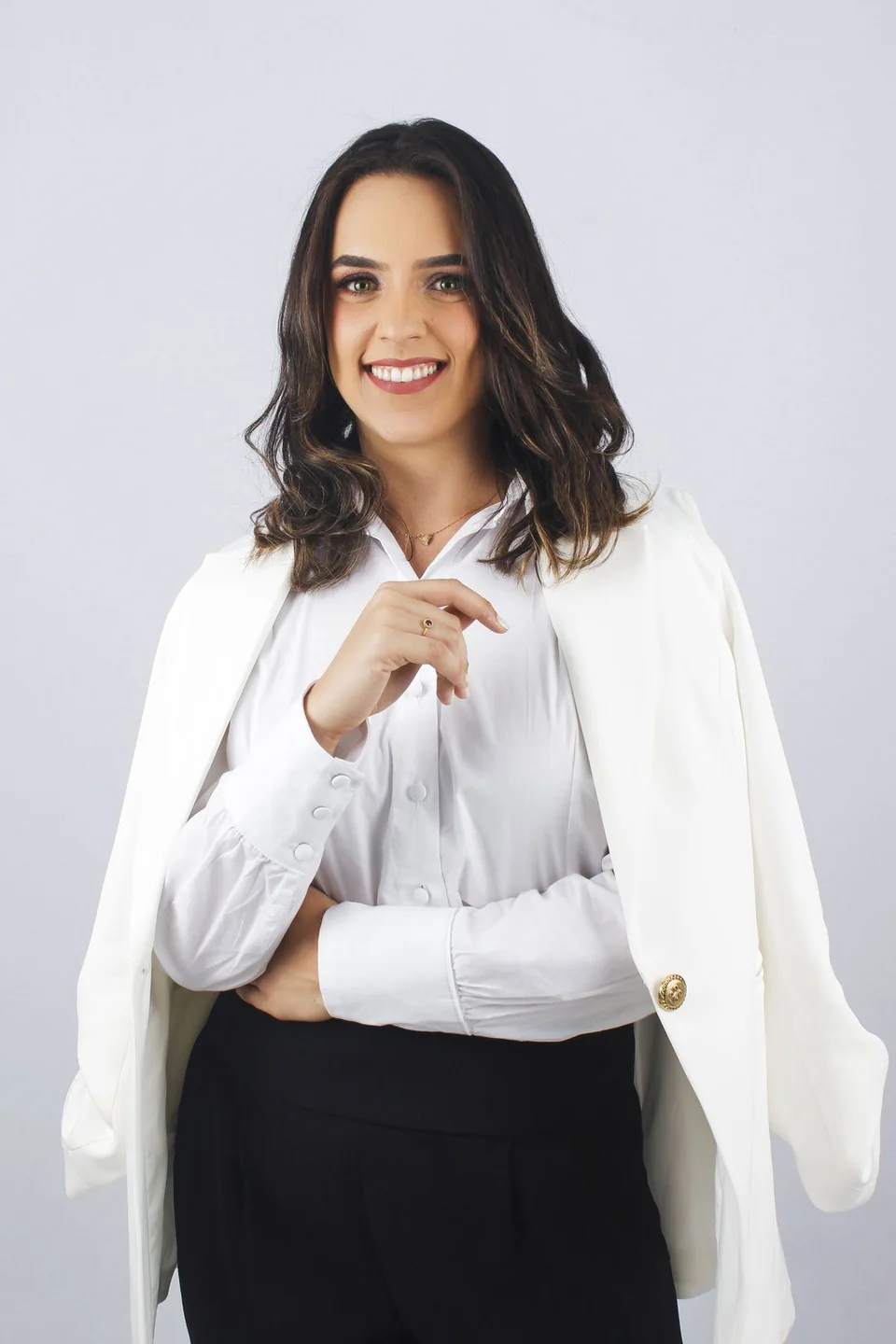 Sample person · not an AI result
Two inputs. One outfit edit.
See the person photo, the clothing reference and the actual saved output together. Compare the clothing and the person’s details across all three images.
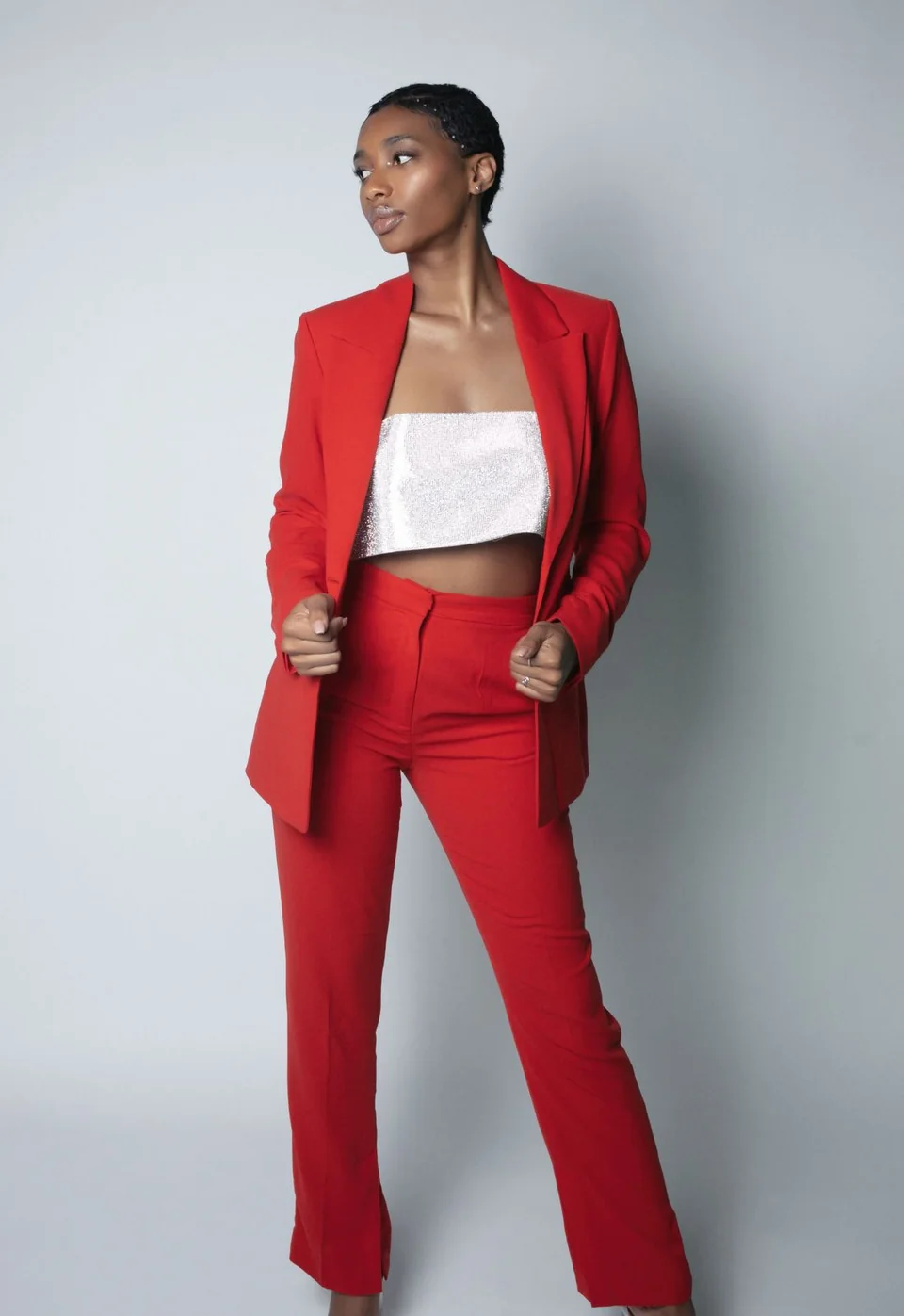
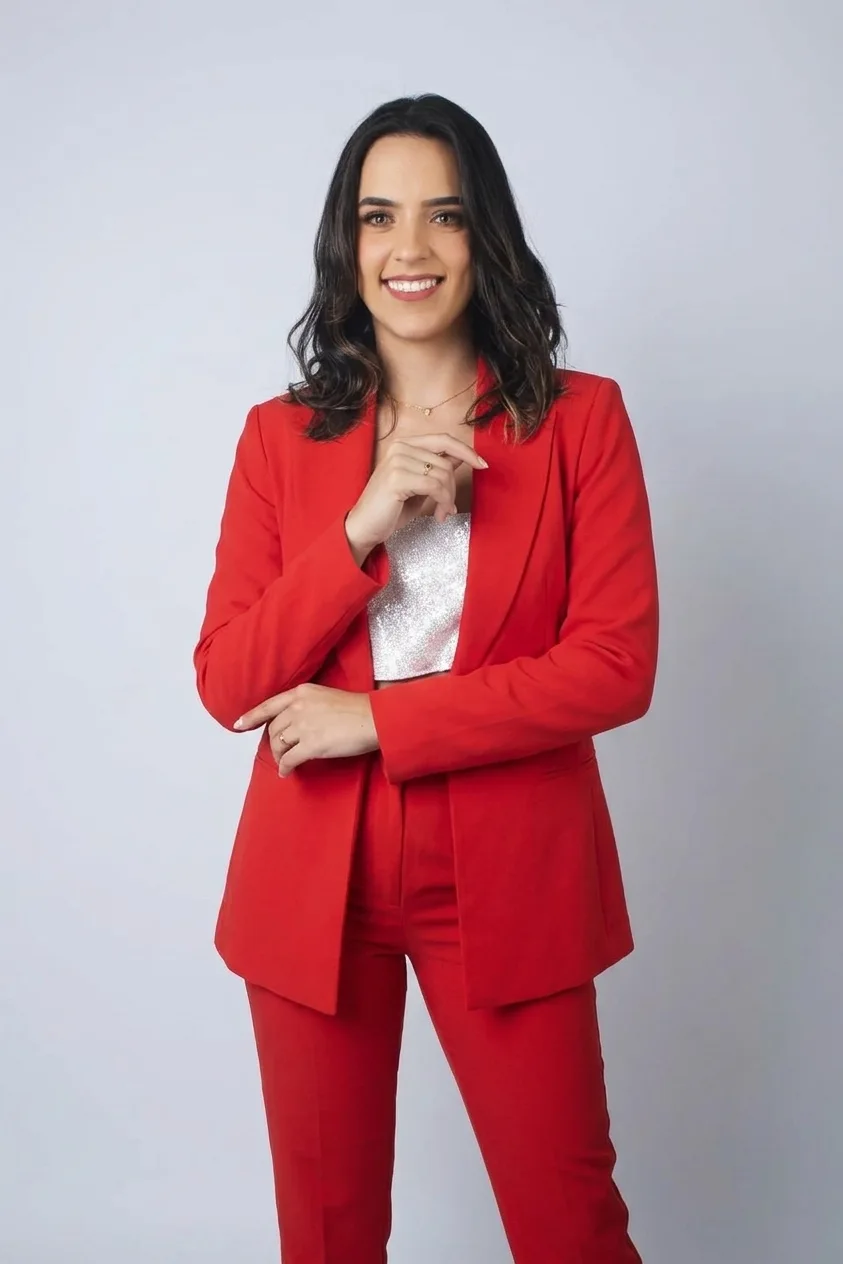
This saved example was generated with Nano Banana 2 via Yir. The current studio uses GPT Image 2.5 Precise. Outputs vary by model and inputs; inspect garment details in each result.
Prepare your own outfit editAn AI clothes changer for your kind of edit.
Choose the task you have in mind. Each workflow opens with photo guidance, a ready-to-edit brief, and the outfit studio.
Change a complete outfit
Bring a whole look into one photo. Choose a person image, add a reference showing the outfit you have in mind, and use the studio below to make a clothing preview.
Prepared briefs + studioPlan an occasion look
A work portrait, an evening invitation, or a different everyday look. Start with the occasion, choose clothing that suits it, and preview that reference on your own photo.
Prepared briefs + studioPrepare your photo pair
Get your photo pair ready before you generate. Check the person image, choose a clothing reference with the details in view, and add each photo to its labeled slot below.
Photo checklist + studioSwap one garment
Keep your edit focused on one piece. Show the replacement in a reference photo and name the clothing you want to keep, so you can review a specific garment swap.
Prepared briefs + studioUnderstand the free trial
Try one successful AI outfit change with a registered account when trial capacity is available. Prepare your person photo and clothing reference below; the free request does not require payment.
Trial guide + studioBuild an outfit idea
Turn a saved clothing reference into a visual outfit idea. Build a short brief, pair the reference with a person photo, and use the generated image to explore the look.
Brief builder + studioPreview clothing visually
See a clothing reference in the context of your own photo. Use this visual try-on workflow to explore the look, then compare it with the real garment before making a clothing decision.
Prepared briefs + studioHow the AI clothes changer works
This AI outfit changer uses two images: a person photo and a separate garment reference. Add a short instruction, review the generated look, and download it only if the details look right.
Start with you
Add a clear photo of yourself or someone who has given you permission to edit it.
Bring the outfit
Choose a clothing reference. Add a few words about the change you have in mind.
Make it your look
When generation is available, compare the new outfit with your original and review it before downloading.
A better photo.
A clearer direction.
The right inputs make your intended edit easier to understand. Start with what you want to keep, then show what you want to change.
Keep the person in view
Choose a clear, well-lit photo with the clothing area visible and as little obstruction as possible.
Show the outfit clearly
Use a reference where the garment’s shape, color, and details are easy to see.
Say what matters
Describe the item you want to change and the parts of your photo you want to keep.
Change the look.
Check the details.
An AI outfit image is a creative visual. Take a closer look before you use it.
The small things matter
Review the garment’s shape, print, buttons, and edges. Check the person, pose, and background too.
Use real measurements for fit
A visual edit cannot predict a clothing size or real-world fit. Refer to the actual garment and its size guide.
Your photos, your choice
Only use images you have permission to edit. Selecting a photo stays local. An approved AI edit sends photos and instructions for safety checking by OpenAI and image processing through Yir.
A different outfit, a visual try-on, or just a color?
Choose by the change you need. These workflows overlap in appearance, but they use different inputs and answer different questions.
| Your task | AI outfit change | Visual try-on | Manual color edit |
|---|---|---|---|
| Start with | A person photo and a separate outfit reference. | A person photo and the garment you want to visualize. | One photo with the existing garment visible. |
| Useful for | A new garment, a complete look, or an occasion outfit. | Exploring a garment’s appearance in the context of your photo. | Trying another color while keeping the existing clothing shape. |
| How you edit | Prepare a brief and request an AI image. | Use the same AI studio with a garment review brief. | Paint a selection and adjust its color locally in the browser. |
| Check the result | Compare the person, pose, garment details and scene. | Check appearance against the reference; use real measurements for fit. | Review your selection edges, shadows and highlights. |
| Open a workflow | Change an outfit | Preview a garment | Recolor clothing |
On a small screen, scroll the table sideways to compare all three workflows.
Make one clear change at a time
Start with the clothing you want to replace and keep the original photo nearby. A reference with a clear neckline, sleeves and fabric color gives you specific details to inspect. For a single item, name the neighboring clothing you want to keep. For a whole look, include every visible piece in the reference. The single garment workflow and complete outfit workflow each prepare a brief for that task.
Keep the versions worth coming back to
Download a completed look before starting another. Use the same person photo to compare two references, and change one thing between versions: a garment, a color combination or a layer. Keep the reference and result together so you can see what worked. When you are choosing a look for a particular setting, the occasion outfit changer gives you work, evening and everyday starting points. Check the real garment’s measurements before making a purchase.
Questions about
the AI clothes changer.
Can I edit a photo on my phone?
Yes. Use a JPEG, PNG, or WebP up to 10 MB. Selecting photos does not upload them. Registered users can try one free successful AI image when trial capacity is available. Accept the photo-processing notice before starting. No payment is required.
What happens to the photos I select?
Selections stay in this tab until you consent and request an AI edit. We resize images to a 2048-pixel long edge, strip metadata and send photos and instructions for safety checking by OpenAI. Approved inputs go through Yir for generation; the result is checked before display. Tasks are saved with your account for recovery. Resetting does not delete upstream files or cancel a running task. Manual recoloring stays local.
Is this virtual try-on accurate for fit and sizing?
No. This AI outfit preview creates a visual clothing edit; it does not measure a person, verify a size, or predict how a physical garment will fit. Check the clothing seller’s size guide.
What photos does the AI outfit changer need?
Use a person photo and a separate outfit reference. Select your own images or start with the included sample inputs. Use photographs you own or have permission to edit, with clear views of the person and garment.
Is this AI clothes changer free?
Registered users can request one successful free AI outfit change when trial capacity is available. Account, IP, and retry limits apply. No payment is required for that free request.
Can I generate an outfit from text alone?
This studio uses a person photo and a separate clothing reference. Add optional text to describe the garment and what you want to preserve. The outfit brief builder helps you prepare those instructions.
Can I change just one item of clothing?
Yes. Use a single garment brief to request a jacket, top, or lower-body clothing swap. Name the items you want to keep, then check the whole output: instructions guide the edit but do not lock pixels.
How do I make more edits after the free trial?
Review the available credit packs on the pricing page. The studio shows current account eligibility and credit options before you request another edit. A paid edit requires a separate choice and confirmation.
AI clothes changer
guides for your next edit.
Prepare photos, write outfit instructions, troubleshoot edits, compare virtual try-on workflows, and review garment color changes.
Photo & prompt help
2 guidesPrepare the inputs and describe the outfit you have in mind.
Fix a problem
1 guideFind the next step for a file error or unavailable generation.
Change a color
1 guideKeep the garment and control where a color edit applies.
Fashion workflows
2 guidesReview product imagery and choose the right kind of try-on.