
Outfit Changer for Your Next Occasion
A work portrait, an evening invitation, or a different everyday look. Start with the occasion, choose clothing that suits it, and preview that reference on your own photo.
Start with your photos Person photo + clothing reference · JPEG, PNG, WebPWhat are you dressing for?
Pick an occasion to prepare a focused edit. Your outfit photo supplies the actual clothing; the brief describes how to use it.
Read the prepared instruction
Dress the person in the work outfit from the reference. Keep the collar and jacket edges clear, with natural folds. Keep the original face, hairstyle, pose, crop and background.
Create your outfit swap
Selecting photos does not upload them.
How your photos are handled
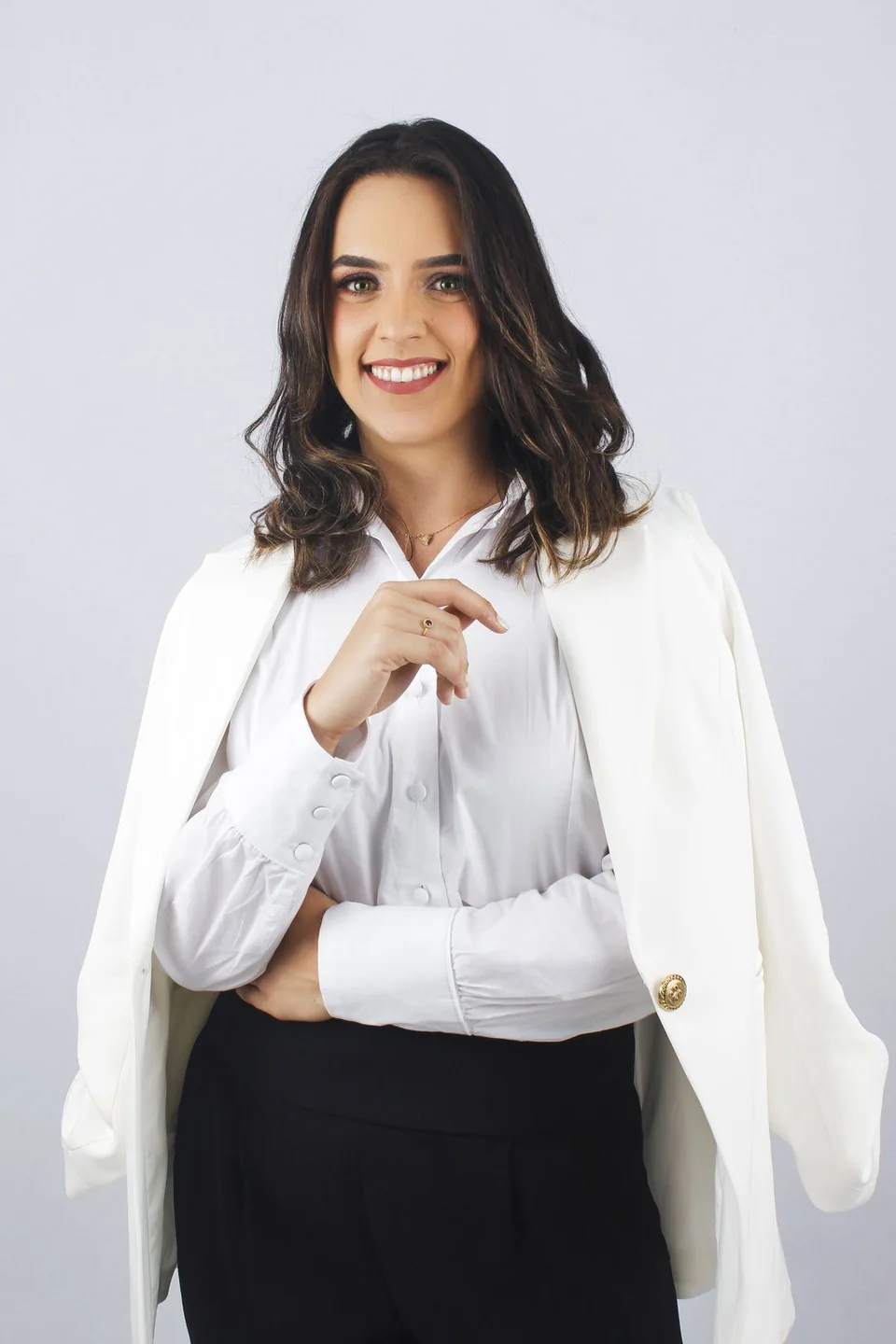 Sample person · not an AI result
A brief requests the change; review the generated result before saving. Check your photos before editing
Your next look, step by step.
Prepare a specific edit, keep the original nearby, and compare the details that matter to you.
- 01
Choose an occasion
Use an occasion brief above to decide what you are trying to see. A specific purpose makes it easier to pick a reference and judge the result.
- 02
Keep the portrait consistent
Use the same person image while exploring different references. Match the outfit to the visible crop: a work portrait usually needs a clear neckline and shoulders.
- 03
Save a look you can compare
Download the version you like before starting another. Keep each reference beside its result so you can remember what changed.
Make the occasion useful to the edit
An occasion is a way to narrow your choices. For work, you might care about a collar and a clean jacket line. For an evening look, the neckline and fabric finish may matter more. Select a reference showing those details instead of relying on the word “professional” or “elegant” alone.
This outfit changer changes the clothing visible in a still photo. Use it to explore a direction for the picture; make real clothing decisions using the actual garment, its measurements and the setting where you will wear it.
Build a small comparison you can return to
Start with two looks that differ in a meaningful way, such as a structured jacket and a softer layer. Use the same person photo and preserve the crop and background in both briefs. That gives you a clearer comparison than changing every part of the image.
After each completed edit, download the result before starting a new one. A simple filename with the occasion and garment color helps you find it later. Successful tasks can also be recovered through your account when available; selecting local photos alone does not save them to an account.
Before your next edit.
Can I use the outfit changer for a profile photo?
Yes. Use a clear portrait and a reference showing the visible clothing area. Check the resulting face, neckline and shoulders carefully before using the picture as a profile image.
Can I compare more than one outfit?
You can make separate edits with different references as your trial or credits allow. Download each completed version and compare them using the same original photo.
Will changing the occasion add clothing automatically?
The occasion choices prepare text instructions. You still provide a separate reference photo showing the clothes you want to preview.