
Have the original person photo and a readable garment reference ready.
Choose a person photo and a readable garment reference
Keep the garment area visible. A close portrait cannot describe trousers outside the frame, and a front reference does not establish the design of an unseen back panel. Use a person photo whose framing covers the part you want to change, with uncluttered lighting and as little obstruction as possible.
For a particular item, use a photograph of the actual garment. Check that its neckline, sleeves, hem, fastenings and main pattern are visible. A clear reference gives you concrete details to compare with the result. The AI outfit changer explains the two-photo workflow.
- Use your own photographs or images you have permission to edit.
- Keep the untouched original so you can compare the person, garment and scene later.
- If hands, hair or a bag hide the clothing, choose a clearer source rather than asking the edit to invent the hidden area.
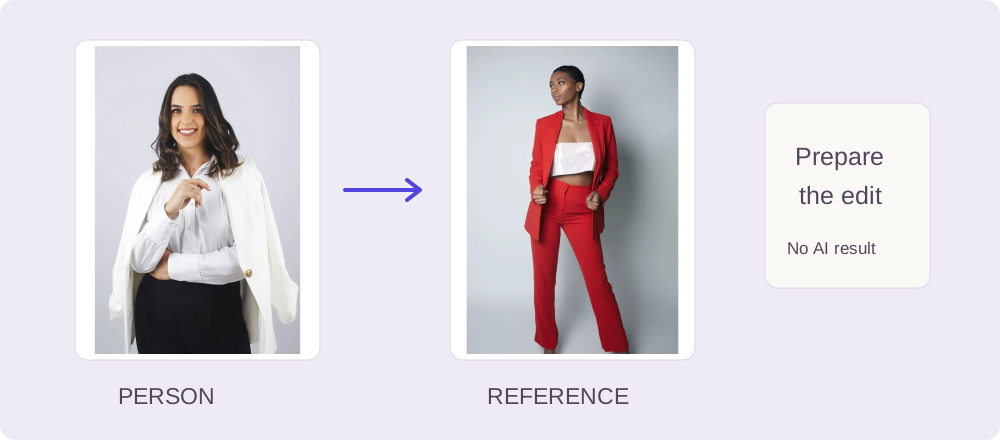
Generate an outfit edit in our studio
Selecting photos keeps them in this tab until you consent and start an edit. Read the photo-processing details before submitting. If you leave while a task is running, use Resume last saved edit after signing in again. Reopening a saved task recovers its status and any available result, but does not restore the selected photos or editable brief. Keep the source files and prompt separately so you can prepare another edit later.
Add the person photo
Open the outfit changer and sign in before choosing photos, since signing in reloads the page. Use Your photo, or drop a file into that field. Choose a JPEG, PNG or WebP up to 10 MB and 40 megapixels. If your original uses another format, export a supported copy from your photo app.
Add the outfit reference
Select the replacement clothing in Outfit reference. For a single-garment swap, choose a reference that clearly shows that piece. Check both previews: Your photo supplies the person and Outfit reference supplies the garment.
Describe the intended change
Additional instructions is optional. Use it to narrow the change or name details to keep. If you need the outfit brief builder or prompt guide, open it in another tab, copy the text and paste it into Additional instructions in your studio tab. Your selected photos stay in that studio tab.
Generate and open the result
Check availability and accept the processing notice. Registered users can request one successful free generation, subject to capacity, account, IP and retry limits. Check the free trial details and choose Generate free outfit when available. The pricing page previews planned paid options; purchases are not open yet. Wait for the saved task to finish, then review the result.
Finish the image after reviewing the outfit
Open the downloaded file at its actual size before cropping or retouching it. Keep the original, garment reference and approved edit together so you can revisit the same brief. If you need layers or more detailed color work, the optional complementary tools section points to Adobe’s own instructions.
Check the person, clothing and edges before saving
If the person changes, return to the original input instead of using the flawed output as the next source. Simplify the edit or choose a clearer reference. The symptom guide separates input errors from an unexpected result.
If the cut is already right and you only want another color, use the manual recolor tool. For another garment, return to the single-garment swap with the original person photo and your next reference.
Use visual try-on to explore appearance. For a clothing purchase, check the real garment measurements and seller’s size guide; the edited image does not measure fit.
- Person: compare face shape, hairline, expression, hands, body proportions and pose with the original.
- Garment: compare neckline, sleeve length, seams, pockets, buttons, hem and print with the clothing reference.
- Scene: check the boundary around skin and hair, the background and the direction of the light.
- File: open the saved image at its actual size. A small preview can hide damaged text, repeated patterns or rough edges.
Sources & further reading
Source-check record: 19 October 2026. Use the publishers’ links below for their own workflows.
- Adobe Firefly: outfit editing workflow
Adobe’s guide to outfit editing in Firefly.
- Affogato: change an outfit while keeping the person
A vendor’s workflow for person and garment references, with a result-review checklist.
- Google Shopping: how Try-On works
Google’s explanation of shopping previews and their relationship to sizing.