
Keep the SKU, original photos, prompt and review notes together for each item.
Choose the image you need for the garment
Our studio follows the first row: choose an existing person photo and an actual garment reference for one edit at a time. Use the complete-outfit workflow for coordinating pieces. For a customer-facing preview, review the virtual try-on workflow and the input comparison before planning a separate store integration.
Match the task to its inputs before preparing a set of product photos.On a narrow screen, scroll the table sideways.
| Job | Inputs to look for | Review goal |
|---|---|---|
| Dress an existing person | Person photo and garment reference | The same person, with the intended actual garment |
| Create an on-model presentation | Garment photo and a supported model choice | The real product details in the new presentation |
| Remove a visible model or support | A source suitable for a ghost-mannequin workflow | A product view that does not invent hidden construction |
| Let a customer preview a product | A shopper photo, catalog image and an implemented customer flow | A clearly bounded visual preview, separate from size advice |
Make one outfit edit with a traceable product reference
Identify the real item
Record the SKU, real color variant and product view beside its source photograph. Keep front, back and detail photos available, and choose the view that shows the design details needed in your edit.
Choose a readable source
Keep the whole garment in frame with its outline and fastenings visible. Use even lighting and inspect the source at full size. If a logo or print is blurred, choose a sharper product photo so you can compare it with the result.
Set up the studio edit
Review the photo-pair checklist, then open the AI outfit studio, selecting the person in Your photo and the product in Outfit reference. Name the garment and details to keep in Additional instructions, or prepare a request with the outfit brief builder. Sign in, check availability and accept the processing notice before generating.
Approve each actual result
Compare the completed edit with the source and real item using the checklist below. Save the source, result and exact instruction under the SKU. For a later set, reuse your chosen person photo and framing, then review every image together for consistency.
Compare the edit with the real item
For a recolored product photo, inspect the actual mask boundaries and color limits as well as the new color. A neat preview can still tint a logo or skin if those pixels were selected.
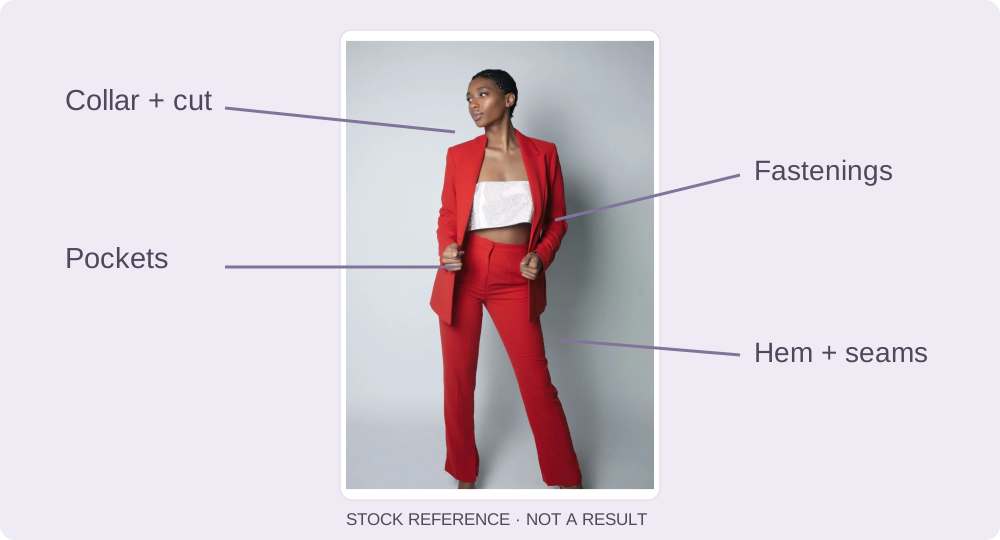
Open the result at full size and compare these details with the product and its original photographs.On a narrow screen, scroll the table sideways.
| Check | Look for | If it differs |
|---|---|---|
| Cut and proportion | Neckline, sleeve length, hem position and overall silhouette | Reject the image if it implies a different design; use an accurate source or real photo. |
| Construction | Pocket position, fastenings, seams and trim | Compare at full size. Do not publish invented or missing details as part of the SKU. |
| Print and text | Pattern placement, repeat scale, readable logos and lettering | Use the actual detail photo when the generated version cannot reproduce it. |
| Color and material | The real color variant, visible texture and transparency | Do not create an unavailable color variant. A color swatch is not a measured fabric match. |
| Person and scene | Identity, proportions, hands, edges and lighting across the set | Return to the approved source and simplify the edit if the person drifts. |
| Fit information | Whether the image implies a measured length or selected size | Keep real measurements and size information separate; a generated presentation does not establish fit. |
Confirm image rights before a listing or campaign
Use person and garment photos you have permission to edit, with consent from the person shown. Our Terms of Service do not include a separate commercial output license. Before a listing or campaign, confirm the applicable service terms, source-image rights and destination requirements; the free trial and paid packs cover generation access.
Keep those permissions and the review decision with the SKU. Resolve any outstanding rights question before publishing the affected image.
Compare cost per approved image
Use your own observed costs. Divide generation spend plus review and retouching cost by the number of images you actually approve. Count rejected attempts in the spend; do not divide by every output just because it was generated.
Registered users can begin with one successful free generation when capacity allows, subject to account, IP and retry limits. Use that first result to work through the same review checklist you would apply to a larger set.
Use one period and one currency in the worksheet. Include review and retouching time at your own cost rate. Check the current paid packs when planning more generations, and use actual spend in the calculation.
Cost per approved image
(Generation spend + review and retouching cost) ÷ approved images
Keep the approved files ready for your store workflow
- Approve the real product identity, color and construction against the source.
- Review the customer-facing claims and current image requirements for the destination.
- Keep real detail views and sizing information available.
- Record which result was approved for each SKU and view.
- For an occasion-based image set, keep the person photo, crop and styling brief consistent across items.
- Upload approved files through your existing store workflow and check the final listing.
Sources & further reading
Source-check record: 19 October 2026. Use the publishers’ links below for their own workflows.
- Snappyit: clothes in a product photo
A vendor’s guide to garment inputs and product-detail review.
- Affogato: change an outfit while keeping the person
A vendor’s workflow for person and garment references, with a result-review checklist.
- Google Shopping: how Try-On works
Google’s explanation of shopping previews and their relationship to sizing.