
AI Outfit Changer
Bring a whole look into one photo. Choose a person image, add a reference showing the outfit you have in mind, and use the studio below to make a clothing preview.
Start with your photos Person photo + clothing reference · JPEG, PNG, WebPStart with the look you want
Choose a starting brief, then adjust it to match your reference. Applying a brief changes your instructions and keeps your selected photos.
Read the prepared instruction
Replace the visible outfit on the person with the complete clothing look in the outfit reference. Use the reference for garment shape, color and layering. Keep the person’s face, hair, pose and background as close to the original as possible.
Create your outfit swap
Selecting photos does not upload them.
How your photos are handled
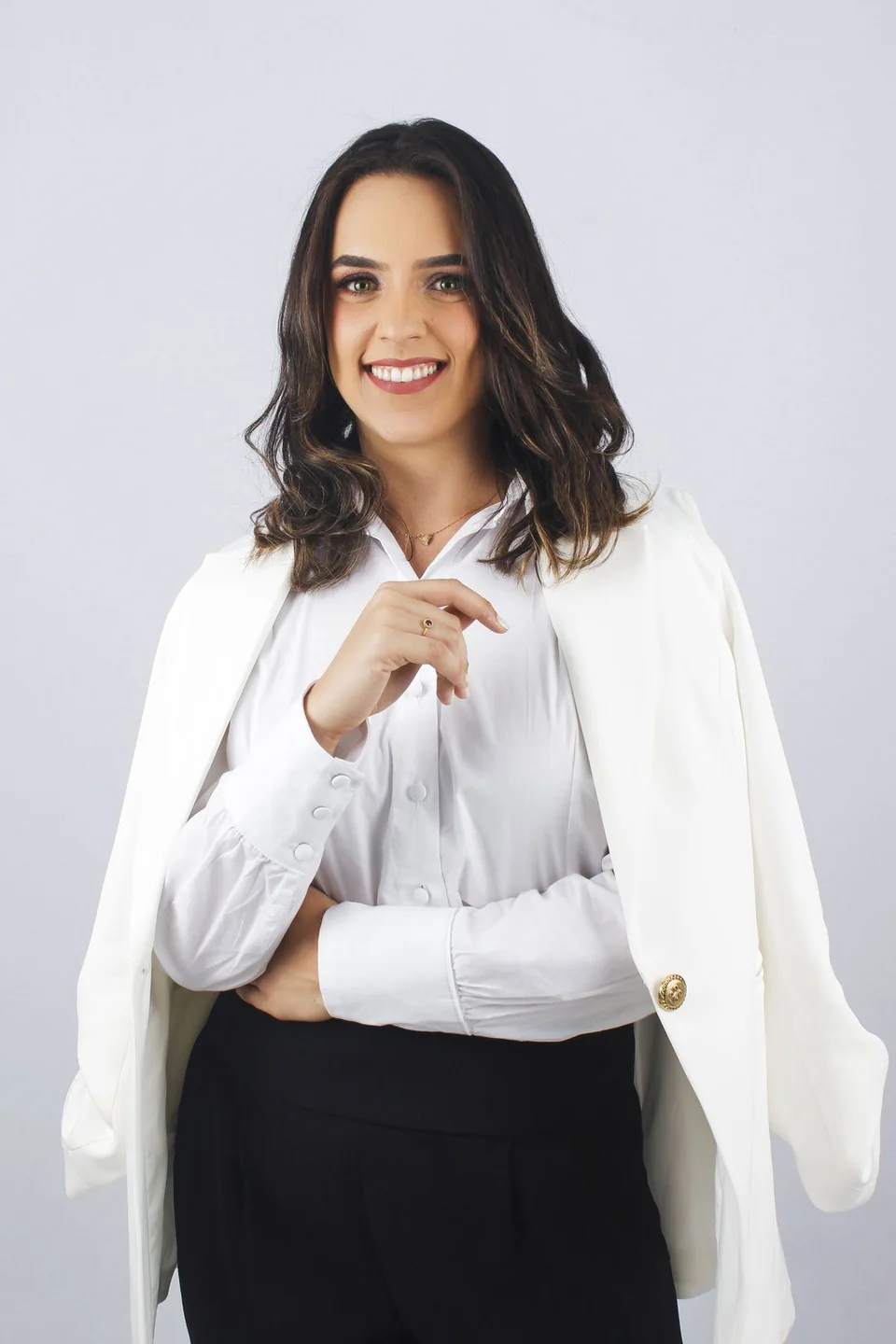 Sample person · not an AI result
A brief requests the change; review the generated result before saving. Check your photos before editing
Two inputs. One outfit edit.
See the person photo, the clothing reference and the actual saved output together. Compare the clothing and the person’s details across all three images.
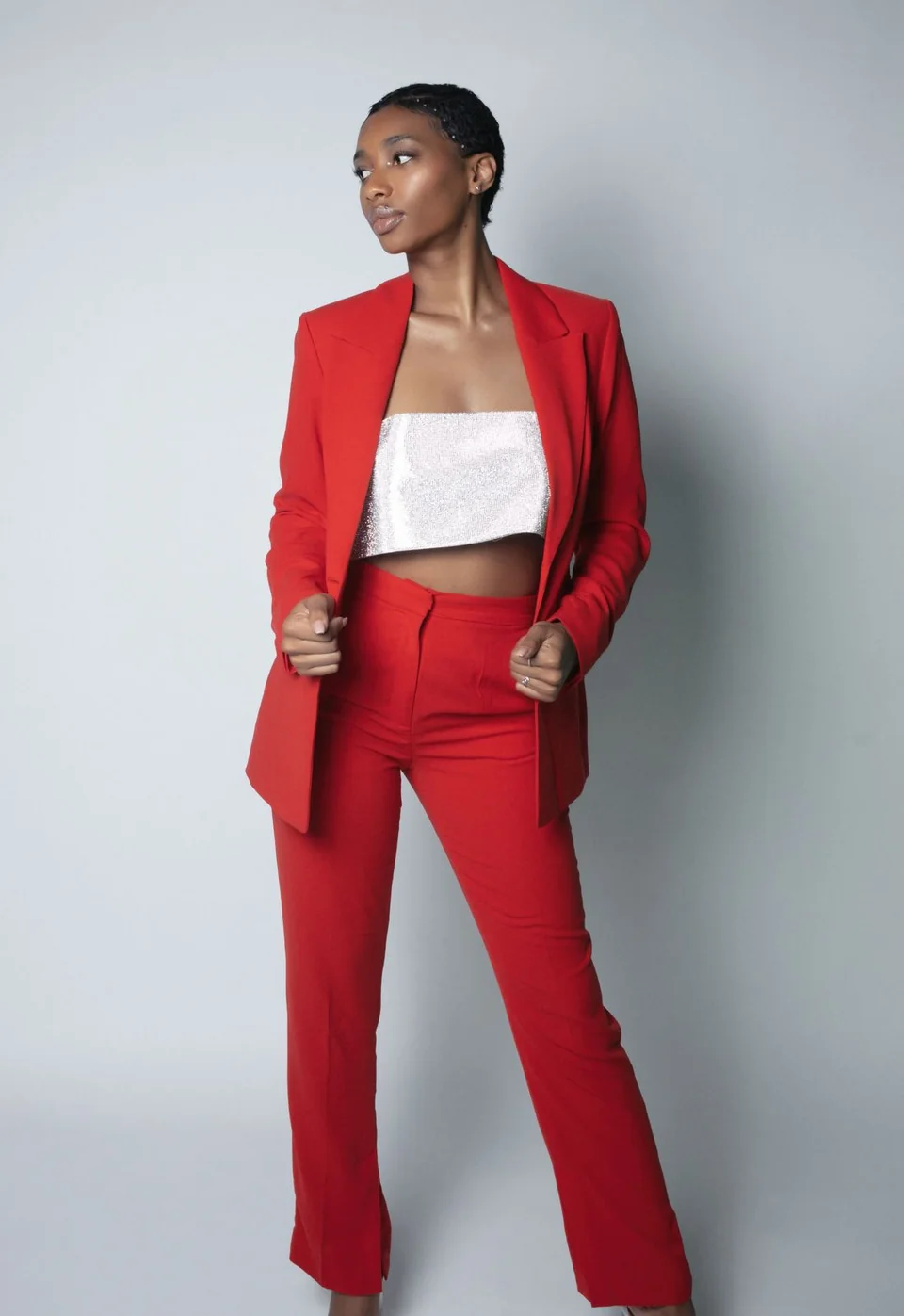
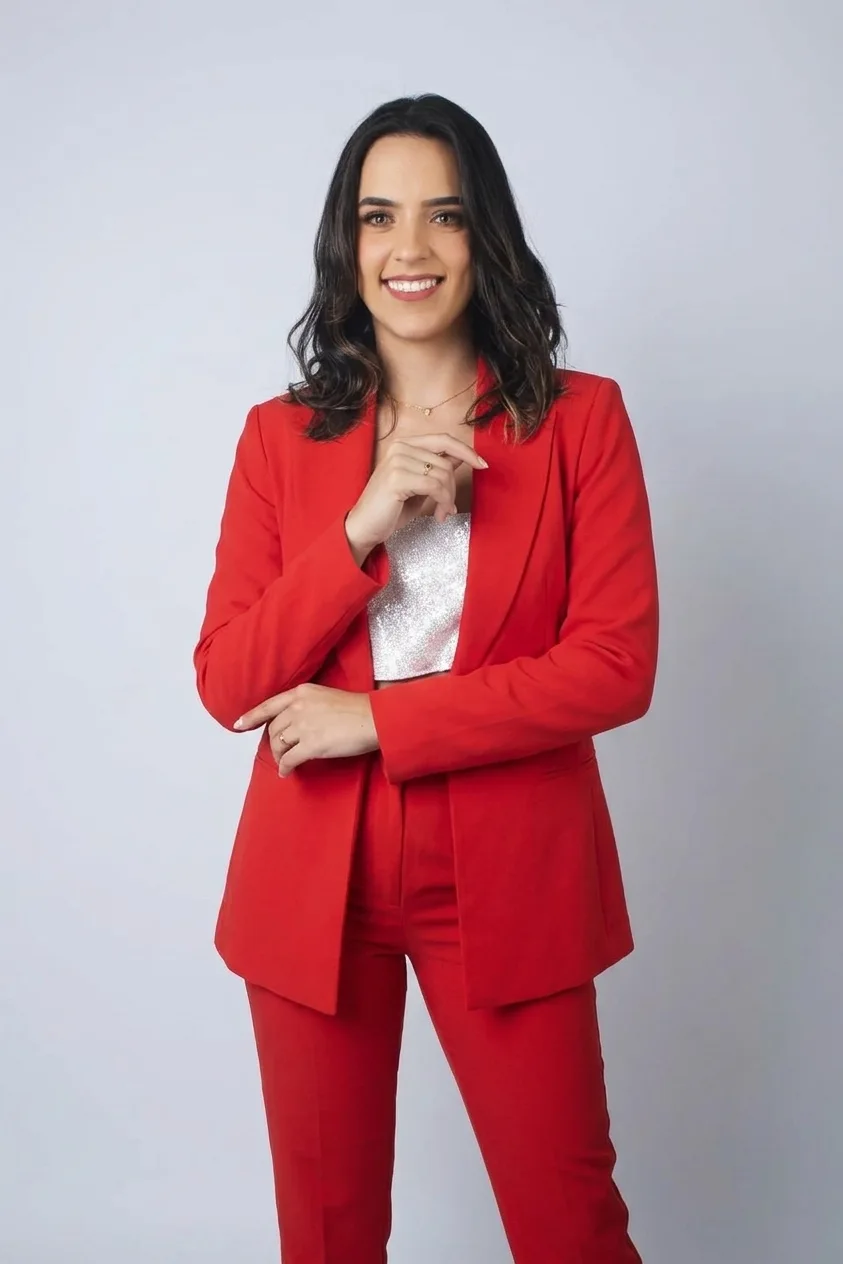
This saved example was generated with Nano Banana 2 via Yir. The current studio uses GPT Image 2.5 Precise. Outputs vary by model and inputs; inspect garment details in each result.
Prepare your own outfit editYour next look, step by step.
Prepare a specific edit, keep the original nearby, and compare the details that matter to you.
- 01
Choose the person
Start with a photo that shows the whole area you want to dress. For a complete look, include the torso and legs rather than a tightly cropped headshot.
- 02
Show the complete outfit
Add a separate reference with the jacket, top and trousers or skirt visible. A single clear look gives the edit a more specific direction than a collage.
- 03
Compare the finished look
Open the generated preview beside the original. Check the face, hands, layer boundaries and garment details before saving a version you want to keep.
When to change the whole outfit
Use this workflow when several pieces need to work together: a jacket with matching trousers, a dress with a visible outer layer, or a coordinated casual look. The outfit reference carries the visual direction, while the brief tells the editor which details matter.
Match the framing to the task. A reference with a full suit does not reveal how the trousers should look in a portrait cropped at the waist. Choose the framing before spending a generation, and use one outfit reference for each version.
Decide what to keep before you generate
Name the clothing change first, then name the parts of the photo you want to retain. Asking for a new outfit, a different pose and a new background at once makes the result harder to judge. Keep the first attempt focused so you can compare it with the original.
- Check collars, cuffs and the join between a top and trousers.
- Look for missing buttons, changed patterns or fabric that merges into hair.
- Review the face and hands at a useful zoom level, then save the original and edited files separately.
Before your next edit.
Can the AI outfit changer change more than one garment?
You can request a complete visible outfit using one person photo and one outfit reference. Review each piece in the result, especially overlapping layers; the generated image may change details.
Do I need to write a long prompt?
No. A clear reference does most of the explaining. Use a short brief to identify the look and the person or scene details you want to keep.
Can I try it before buying credits?
Registered users can request one successful free edit when trial capacity is available. The studio checks current availability before generation; no payment is required for that free request.