
Clothes Swap AI for a Single Garment
Keep your edit focused on one piece. Show the replacement in a reference photo and name the clothing you want to keep, so you can review a specific garment swap.
Start with your photos Person photo + clothing reference · JPEG, PNG, WebPWhich piece are you changing?
These instructions request a targeted edit. They do not create a mask or lock the rest of the image, so compare the result with your original.
Read the prepared instruction
Replace only the jacket with the jacket shown in the outfit reference. Keep the original top, trousers or skirt, face, hands, pose and background. Pay attention to the lapels, cuffs and jacket length.
Create your outfit swap
Selecting photos does not upload them.
How your photos are handled
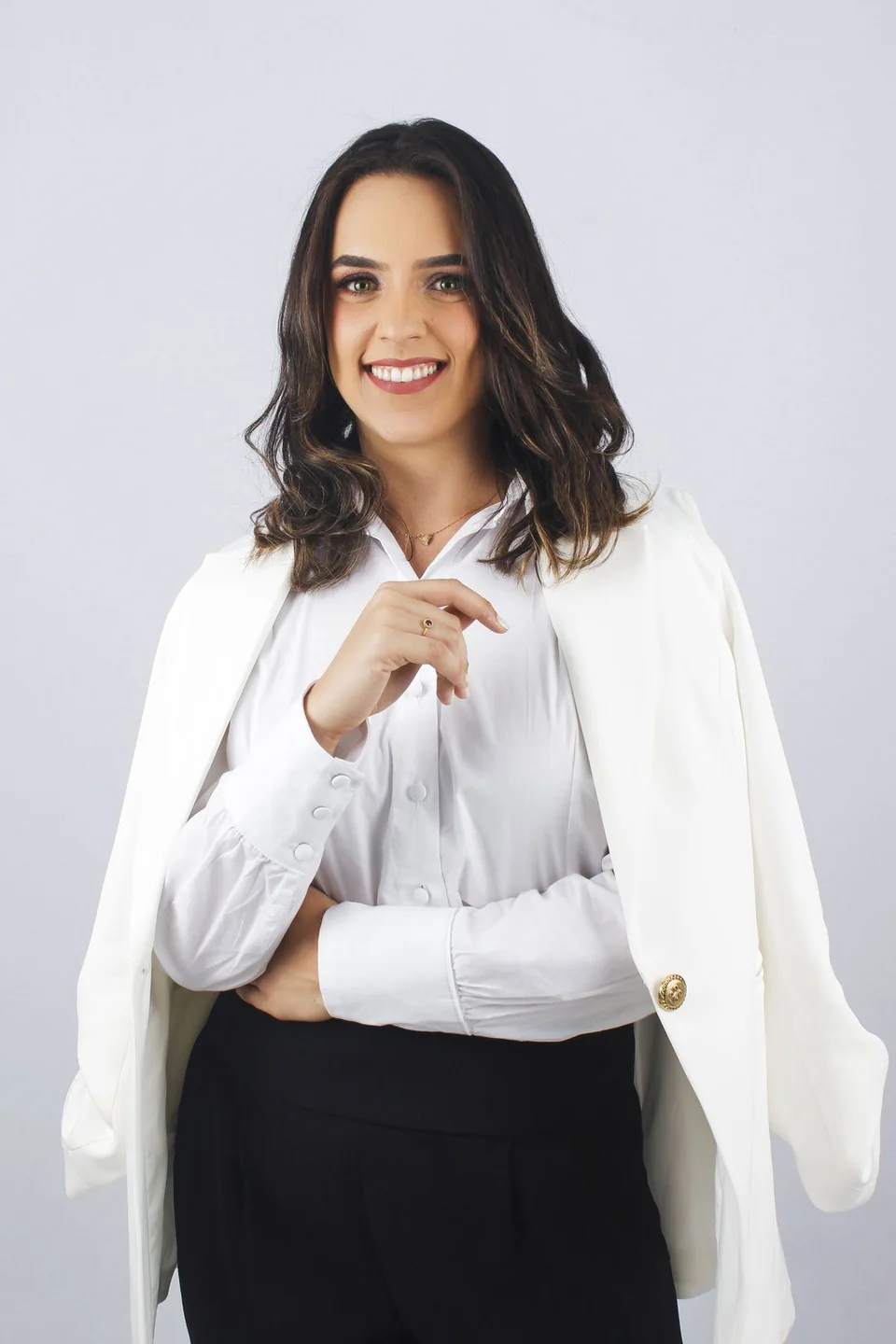 Sample person · not an AI result
A brief requests the change; review the generated result before saving. Check your photos before editing
Your next look, step by step.
Prepare a specific edit, keep the original nearby, and compare the details that matter to you.
- 01
Name one replacement
Choose the piece above. Avoid adding several different clothing requests to the first attempt; a small edit is easier to inspect.
- 02
Add a relevant reference
Use a reference where the replacement garment is clearly visible. Keep the person photo framed around both the garment and neighboring clothing.
- 03
Check the boundary
Compare the collar, cuffs, waistband and overlapping pieces with the original. Also check that clothing outside your requested change remains suitable.
Give a single garment a clear brief
A useful clothes swap AI request names the replacement and the surrounding items to preserve. “Replace the jacket with the reference jacket; keep the white shirt and dark trousers” gives a more checkable task than “make this more stylish.”
The studio uses a person photo, a garment reference and text instructions. There is no manual mask for AI swaps. A request to keep part of an image is guidance to the model, so inspect the whole output and reject a version that changes something important.
Choose a garment swap or a simple color change
Use a swap when you want a different cut, material, sleeve length or piece of clothing. If the existing garment already has the right shape and you only need another color, the manual color tool may be a more direct route: paint the area in your browser and adjust the color without requesting AI generation.
For an AI swap, keep visible product details in mind. A new seam or a changed button can make an image look convincing while no longer matching the real item. Compare those details with the reference at a useful zoom level before sharing.
Before your next edit.
Can clothes swap AI lock the face and background?
You can ask to preserve them, but the studio does not offer a pixel lock. Review the face, hands, background and nearby clothing in every result.
Do I paint a mask for a clothing swap?
No. This AI workflow uses your photo pair and instructions. The separate manual recoloring tool has a brush, which changes colors rather than replacing a garment.
Can I swap the entire outfit instead?
Yes. Use the complete outfit workflow and a reference showing all the visible pieces you want to change.