
Keep the exact message and current task status visible while you work through the matching section.
Start with the symptom you can see
Choose the row that matches the current state of your edit.On a narrow screen, each label is followed by its full answer.
| Symptom | Go to |
|---|---|
| The selected file will not open | Upload messages |
| Generate stays disabled with both photos selected | Generation unavailable |
| The face, hands or garment details changed | Unexpected edit |
| You cannot find an edited image to download | Recover a download |
Fix the photo named in the upload error
Correct the affected file and select it again; your other selected photo can stay in place. The AI outfit changer uses Your photo for the person and Outfit reference for the replacement clothing. Use the photo-pair checklist to check the framing and the input guide for field-by-field help.
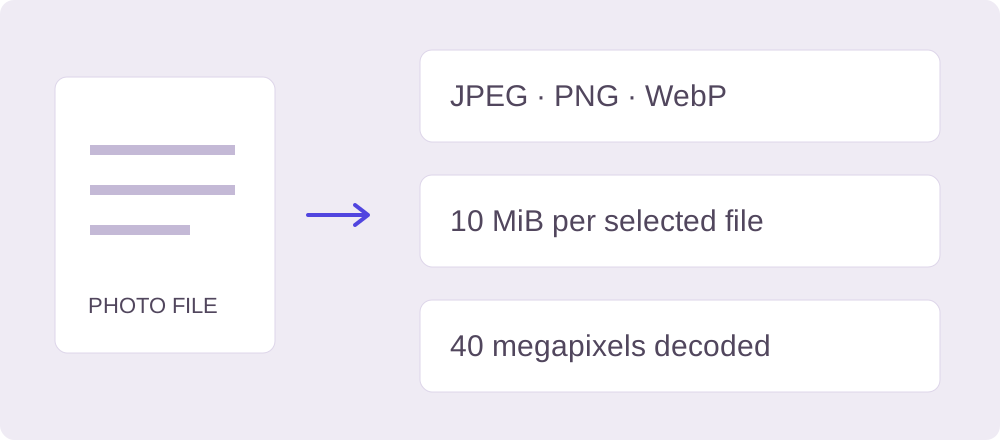
Current studio file checks. The 10 MiB byte limit applies to each selected file.On a narrow screen, each label is followed by its full answer.
| Message | Correction |
|---|---|
| Choose a JPEG, PNG, or WebP image. | Export a real JPEG, PNG or WebP from your photo app. Renaming HEIC, SVG or PDF to .jpg does not convert it. |
| This file is empty. Choose a different photo. | Select the original full file again or export another copy. A zero-byte placeholder contains no photo to open. |
| This photo is over 10 MB. Choose a smaller image. | Resize or compress a copy below 10 MiB (10,485,760 bytes), then select it again. Keep the original separately. |
| This photo is too large to edit. Choose an image under 40 megapixels. | Reduce the pixel dimensions. Lower file size alone does not change the decoded pixel count. The current validator rejects more than 40,000,000 pixels. |
| This image could not be opened. Try another JPEG, PNG, or WebP. | Open the file in a photo app and export a new copy. Try that copy, keeping the original intact. |
Correct a changed face, hand or garment detail
When reviewing a visual try-on preview, compare the result with both originals. Check the person’s face, hands and pose, then the garment’s collar, sleeves, hem, fastenings and print. If a detail is wrong, keep the original person photo as the source for your next attempt.
Simplify to a single-garment swap and remove unrelated pose, background and retouching requests. Replace a blurry or obstructed reference. Use the outfit brief builder for a focused request and the prompt review table to decide which detail to change next.
For color alone, the manual recolor tool leaves unpainted pixels untouched. Paint carefully around skin and printed details; it has no automatic garment detection.
Recover a result before starting another edit
Wait for the saved task to show a completed, available result, then choose Download image. If a result link expires, choose Check saved edit to request a current link for that task. If the retained file has expired, it cannot be recovered through that download control. Save an approved result to your device while it is available.
Check the saved task status before sending another generation. A repeat submission creates another edit; it is not a way to reopen the existing result. In the manual recolor tool, use Download PNG before refreshing or closing the tab.
For a persistent error, record the exact message, task status and browser. Include file type, byte size and pixel dimensions for an upload problem, then use the contact page for help. Keep private photos, credentials and payment details out of public reports.
Sources & further reading
Source-check record: 19 October 2026. Use the publishers’ links below for their own workflows.
- Affogato: change an outfit while keeping the person
A vendor’s workflow for person and garment references, with a result-review checklist.