
Keep this tab open and download the shades you want before leaving.
Choose a new color for your garment
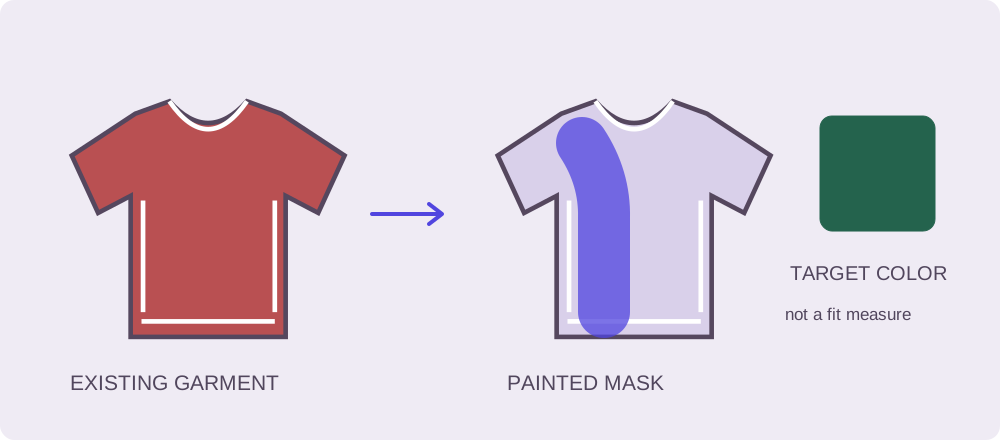
Open a photo, brush over the clothing and try a new shade. You choose the area by hand; the color edit stays in your browser. Use Show mask and Erase to refine the selection around skin and printed details.
Your photo stays on your device.
PNG working size: up to 1600 px on the long edge
Drag to paint. Keyboard: focus the image, move with arrow keys, press Space to paint a spot. Shift + arrows moves one pixel.
Brush over the fabric, then choose a swatch or custom color.
Brush over the garment and compare colors
Open your source
Choose one JPEG, PNG or WebP up to 10 MiB and 40 megapixels. The working image has a maximum 1600-pixel long edge; the PNG uses the dimensions shown beside Download PNG. Keep your original for larger edits.
Paint a garment mask
Choose Paint and drag across the garment on the image. Adjust the brush size for the area. Show mask reveals the painted area in purple. Use Erase to remove selection from skin, hair, background, buttons or printed details you want to leave unchanged.
Choose and compare the color
Pick a swatch or custom color, then switch between Recolor and Original. Try several shades with the same mask to compare the garment against the skin tones, other clothes and background.
Correct edges before downloading
Look at the neckline, cuffs and any hand over the garment. Erase accidental strokes, undo the latest stroke or clear the whole mask. Color changes affect the full selected area, including a print if you painted it.
Download the edited PNG
After painting at least one area, choose Download PNG. The download always contains the recolored working image, including when you are viewing Original or Show mask. Save each shade separately before choosing another color.
Keep skin, prints and edges outside the brush selection
The brush defines the selection manually. Use a larger brush for the center of the garment and a smaller one around a neckline, cuff or overlapping hand. Switch to Show mask to find gaps, then use Erase where the purple selection touches skin, hair, logos or background.
The color adjustment retains the selected pixels’ light-and-dark variation; unpainted pixels stay unchanged in the working image. It is not automatic garment detection. Very dark fabric stays dark, and the chosen swatch is a color direction rather than a measured match to physical cloth.
For a new cut or garment, choose a single-garment swap or complete outfit edit. Both use a person photo and garment reference; the photo-pair checklist helps you prepare them. Keep the brush workflow for color changes to the clothing already in your photo.
Optional complementary tools
For layers and detailed retouching at your original resolution, Adobe’s Photoshop shirt-color tutorial uses the short sequence below. For a separate generative workflow, see Adobe Firefly’s outfit instructions; its account, controls and terms are separate from our studio.
Duplicate the image layer
Open the original in Photoshop and duplicate its image layer so you can compare versions.
Isolate the clothing
Add a garment mask and refine the edges around skin, hair and the background.
Apply the color change
Adjust Hue/Saturation with Colorize, then compare the clothing and edges with the original.
Save your color variants before closing the tab
Choose Download PNG for each color you want to keep. The editor reads the photo and creates downloads in this browser tab; refreshing, closing the tab or choosing Reset clears the working image and mask. Keep the source photo as well as your exported versions.
For a shop, compare the edit with a real color variant using the catalog review checklist. For an occasion look, save your preferred palette before choosing a new garment reference.
To explore color and cut together, prepare a two-photo request with the AI outfit generator or use visual try-on to review a specific garment. These AI workflows require an account; registered users can request one successful free generation when capacity allows. The manual brush above works locally without signing in.
Recoloring very dark fabric
Can this make a black garment white?
Very dark fabric stays dark because the adjustment keeps its original light-and-dark variation. For a white version, start with a photograph of the actual white garment or use a retouching workflow that can adjust lightness as well as color.
Sources & further reading
Source-check record: 19 October 2026. Use the publishers’ links below for their own workflows.
- Adobe: change a shirt color in Photoshop
A layer-and-mask method for changing shirt color in Photoshop.