
The prompt is optional; both the person photo and garment reference are required.
Name the garment and the change you want
Start with the change, not a new description of the whole person. “Replace the jacket with a navy linen blazer” identifies a target. “Make this more stylish” leaves the garment, color and scope open.
Use the garment reference for the main design, then name the visible details that matter: cut, color, fabric, collar or fastenings. Add a short instruction for the person, pose and scene. The AI outfit generator starts from your two images; text helps direct that edit.
For an occasion look, translate “work” or “evening” into visible clothing details. For a visual try-on, name the shape, color or layer you want to inspect in the photo.
Build an instruction from four distinct parts.On a narrow screen, scroll the table sideways.
| Part | What to specify | Example |
|---|---|---|
| Edit target | The existing garment or area | Replace only the jacket |
| Replacement | Item, cut, color and fabric | A navy, single-breasted linen blazer |
| Reference role | Which image supplies the person or clothing | Use the jacket from the clothing reference |
| Preserve | The elements outside the intended change | Keep the face, hands, pose and background |
Copy a prompt and match it to your reference
Choose an example, replace the colors and garment details to match your reference, and paste it into Additional instructions. Keep the request within the field’s 600-character limit. To use one specific item, follow the clothes swap AI workflow with a clear photo of that garment.
Replace one jacket
Replace only the jacket with the navy single-breasted linen blazer in the garment reference. Keep the existing shirt and trousers. Preserve the person’s face, hair, hands, body proportions, pose, lighting and background. Add no accessories.
Choose a reference showing the blazer’s lapels, front and sleeves. Change the description if your reference shows a different jacket.
Use a garment reference
Use the person photo as the identity and pose reference. Replace the visible jacket with the jacket from the garment reference. Retain its visible collar, pockets, fastenings and color. Keep the person, lower clothing and background unchanged.
Place the person in Your photo and the jacket image in Outfit reference. Choose an angle that shows the details needed in the edit.
Describe a complete look
Use the garment reference for the complete look: a cream cotton shirt tucked into charcoal straight-leg trousers. Change the visible outfit to that combination. Keep the person’s face, hair, body proportions, pose, background and original framing. Add no jewelry or bag.
Use a reference showing the full combination and a person photo framed to include the shirt and trousers. Start with one garment if you need a simpler comparison.
Ask for a color-only edit
Use the garment reference for the forest-green color. Change only the plain fabric of the jacket in the person photo. Preserve its existing cut, seams, buttons, folds and printed details. Keep skin, hair, hands, trousers and background unchanged.
For a direct color adjustment to the existing photo, use the manual recolor tool instead and brush over just the fabric.
Keep the prompt consistent with the garment photo
Decide which detail the reference controls before generating. If you want the jacket in the picture, do not also describe a different collar, pattern and silhouette in the text. If you intentionally want a variation, name the one difference and review it against that goal.
Use the photo-pair checklist and studio input guide to check the references. If you are swapping a jacket, specify whether to keep the original shirt and trousers. For a full look, make sure both photos show the whole area you want to change.
Revise one detail after reviewing the result
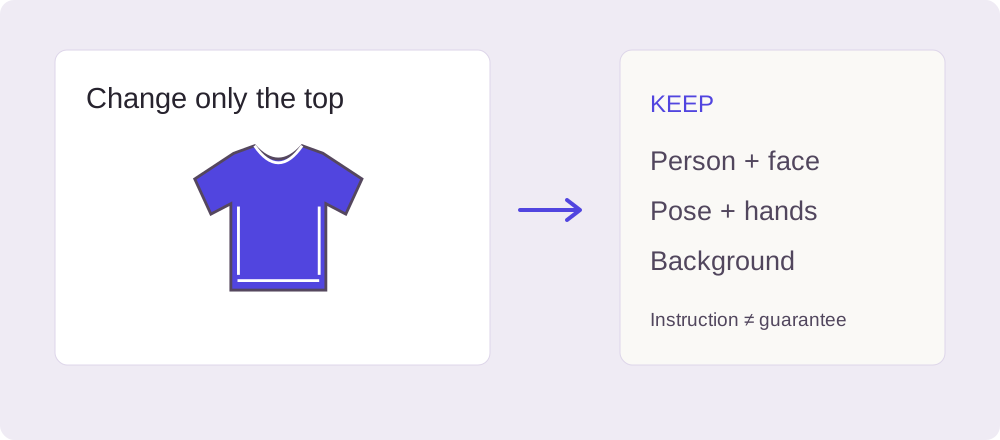
Treat preservation instructions as requests: inspect the face, hands, pose and garment details in every result. Keep the input pair and exact prompt with an edit you approve. Back in the studio, choose Edit again with these photos to unlock a finished edit before changing the brief or reference. Change one instruction or one reference so you can tell what made the difference.
If you only need another shade on the same garment, use the manual recolor tool. For another generated outfit, return to the AI outfit changer with the original person photo and check your free trial availability before another attempt. The pricing page previews planned paid options; purchases are not open yet.
Review an actual output before deciding what to change next.On a narrow screen, each label is followed by its full answer.
| What you notice | Next instruction or input change |
|---|---|
| A different face or body | Return to the original person photo, keep one garment change and remove unrelated appearance requests. Compare the face, hands and pose again. |
| The wrong cut or pattern | Check the reference role and replace vague style words with the garment detail that matters. Use a sharper actual-item reference. |
| Several unrelated changes | Remove requests for pose, background or retouching. Change one garment before combining multiple edits. |
| No output at all | Check service availability and input errors in the troubleshooting guide. More prompt text will not enable an unavailable service. |
Using the instruction field
Where should I put a negative prompt?
Put details to keep or leave out in Additional instructions, alongside the edit request. For example: “Keep the existing trousers; add no accessories.” This studio has no separate negative-prompt field.
Sources & further reading
Source-check record: 19 October 2026. Use the publishers’ links below for their own workflows.
- Adobe Firefly: outfit editing workflow
Adobe’s guide to outfit editing in Firefly.
- Adobe Learn: edit images with natural language prompts
A lesson on reference roles and focused image-editing instructions.
- Affogato: change an outfit while keeping the person
A vendor’s workflow for person and garment references, with a result-review checklist.