
AI Halloween
Costume Generator
Your face. A different costume. Bring a photo of yourself and a costume reference, choose a starting brief, and preview the look before you put it together.
Your photo + a costume reference
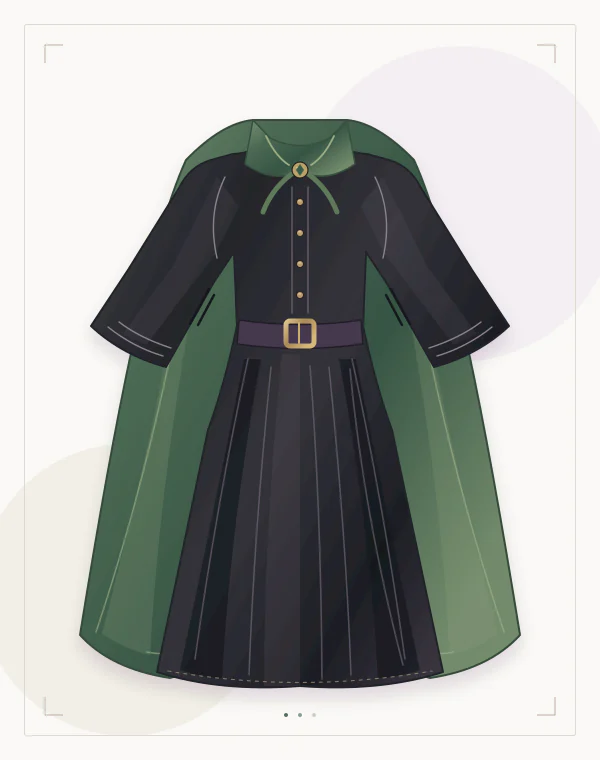
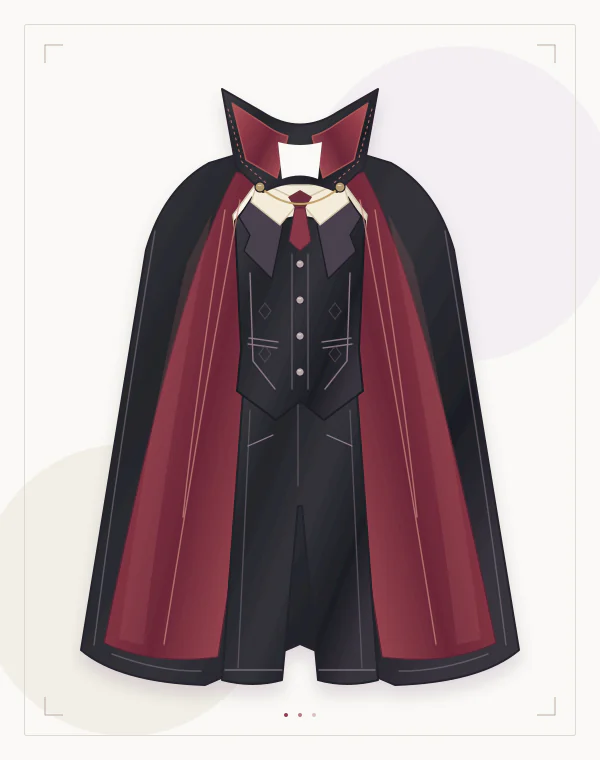
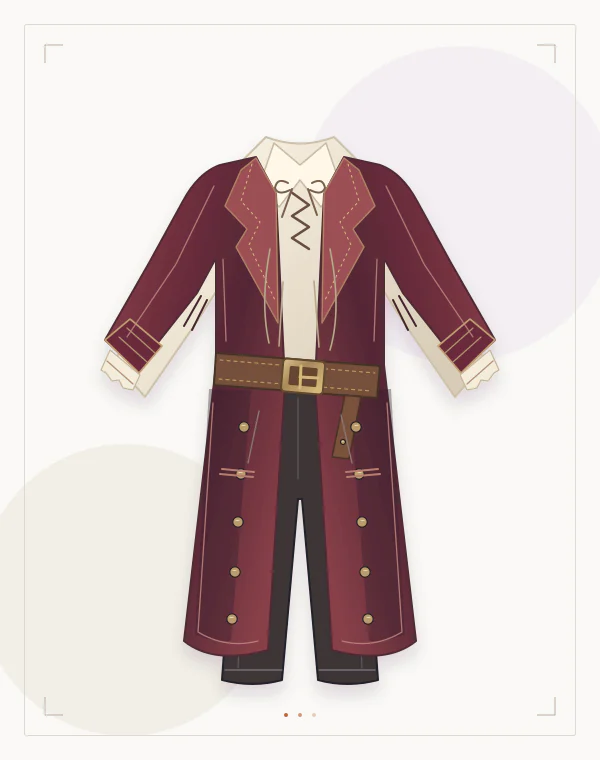
Create your outfit swap
Selecting photos does not upload them.
How your photos are handled (opens in a new tab)Policies open in a new tab to keep your selected photos here.
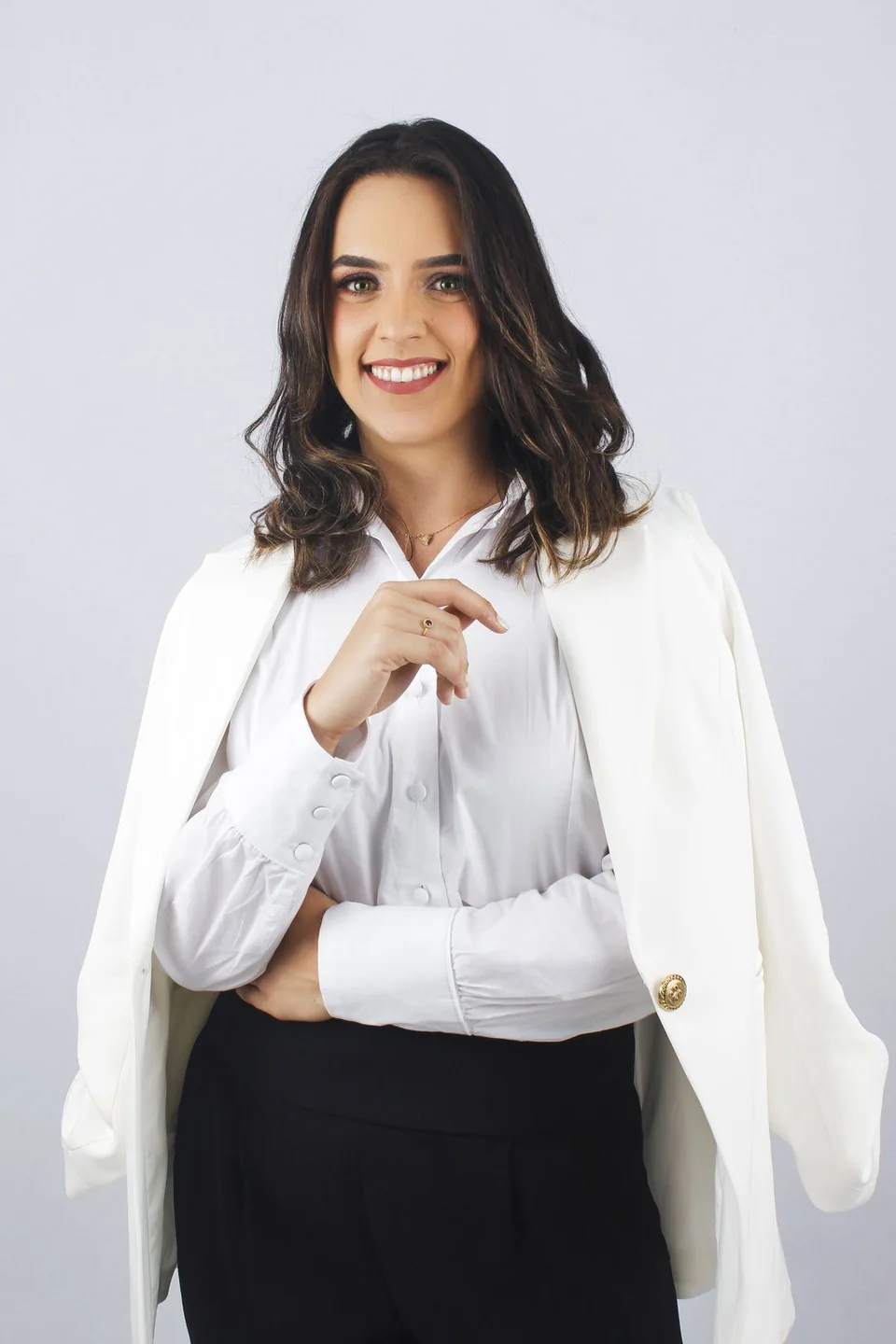 Sample person · not an AI result
Add a clear image of the actual costume you want to preview. The wardrobe illustrations are concepts, rather than generated try-on results. Prepare your two images
Pick a costume.
Bring your reference.
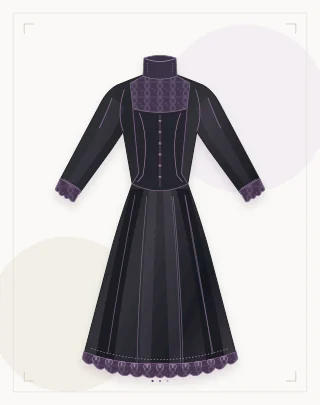
Start with the clothes that make the character. These illustrations show the direction; your costume reference supplies the details for the edit.
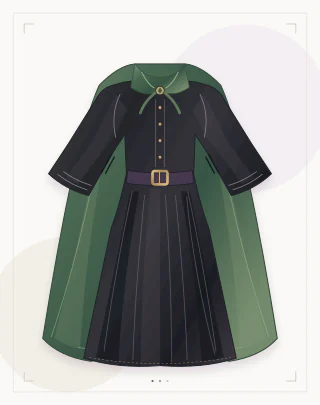
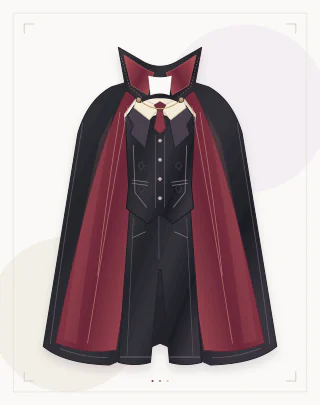
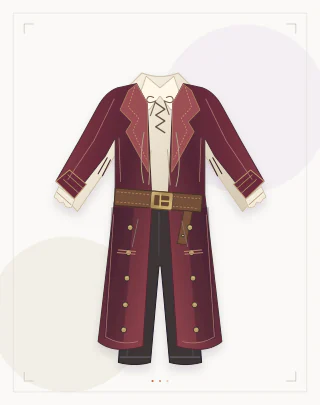
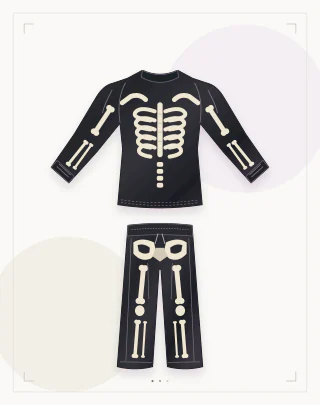
Give your costume a starting brief
Choose the direction that matches your reference. Applying a brief keeps your selected images and lets you review the instructions before generating.
Read the prepared instruction
Replace the visible clothing with the vampire costume shown in the outfit reference. Prioritize its high-collared cape, lining, waistcoat and shirt. Keep the person’s face, hair, skin tone, pose and background close to the original. Keep the face uncovered; do not add fangs, blood or makeup.
From costume idea
to your photo.
Keep the clothing reference nearby so you can compare what the edit changes.
- 01 / PREPARE
Choose your two images
Use a clear photo of one person and a separate costume reference. Show the parts you want to change: a waist-up photo for a cape, a full-length photo for a complete outfit.
- 02 / PREVIEW
Review your brief, then generate
Adapt a starting brief to the clothes in your reference. Sign in and confirm photo processing and the credit cost before requesting your edit.
- 03 / COMPARE
Check the costume and the person
Compare the face, hands, collar, sleeve edges and prints with both inputs. Save a result you are happy with; use the real garment measurements when choosing a size.
Still choosing
your character?
Compare five clothing-led looks, build around your wardrobe and choose a useful reference image.
Explore costume ideas 02 / MAKE IT SPECIFICThe clothes.
The right words.
Copy a Halloween costume AI prompt, adapt the garment details and keep the edit focused on your outfit.
Open the prompt collectionBefore the costume change.
How do I generate an AI Halloween costume from my photo?
Add a clear photo of one person and a separate reference showing the costume. Choose a starting brief or write your own clothing instructions, sign in, and confirm the processing notice and credit cost. Compare the result with both inputs before saving. The photo guide explains framing and file requirements.
Can I use just a selfie and a text prompt?
This studio needs both a person image and an outfit reference. Text helps describe the clothing change; it does not replace either input. Use a waist-up or full-length photo for the clothing you want to see. The Halloween prompt guide gives examples for those two images.
Is the Halloween costume generator free?
Eligible new accounts receive 1 gift credit, enough for one standard 1K image. Each IP address and each browser can claim once across accounts; there is no daily refill. Further generations use your credit balance. Check signup credit conditions and pricing before requesting an edit.
Will the preview keep my face and show the actual fit?
The instructions ask to retain your identity, pose and background, but the model can redraw faces, hands, prints and clothing edges. Review those details at full size. The image is a styling preview; use the real garment’s measurements when choosing a size.
Can I make matching couples or group costumes?
Plan a coordinated theme, then prepare a separate person photo and costume reference for each adult. The current studio has one person slot and one clothing slot; it does not assign different outfits to several people in a group photo. The costume ideas guide helps you choose the clothing first.